Navigation and menus
Where to find pages, budget files and your account: the sidebar on a computer, the tab bar and Menu page on a phone.
Updated November 10, 2026
Good Steward Money has the same pages on every device. On a computer you open them from the sidebar. On a phone you open them from the tab bar at the bottom of the screen and from the Menu page.
The sidebar
The sidebar shows on a computer. From top to bottom it has:
- The Good Steward Money logo: a sprout on a green tile, with the name beside it in the full menu only. Select it to open Home.
- During a free trial, a badge reading "Trial · N days left", in the full menu only. It turns gold at 7 days or fewer. Select it to open Billing. If you moved from Good Steward Local and your first payment on Money is still ahead, the badge reads "First payment Nov 25" instead, with the month and day of that payment, and it does not turn gold.
- The budget switcher, which shows the name of your active budget file.
- The page groups in the table below, with the page you are on highlighted. Group names show only in the full menu.
- Your account button and the menu width control.
Before you choose a plan, pages that need a plan show a lock mark. Selecting one opens Billing. Settings stays open.
| Group | Page | Use it to |
|---|---|---|
| Overview | Home | See the current month at a glance. |
| Overview | Reports | Open reports and your saved report views. |
| Money | Budget | Plan and track one month at a time. |
| Money | Transactions | List, search and edit transactions in all accounts. |
| Money | Accounts | See your accounts and balances. |
| Money | Linked banks | See your connected banks. An amber dot means a bank needs attention. |
| Plan ahead | Budget template | Build a template of your usual month. |
| Plan ahead | Annual Budget Plan | Plan all 12 months in one table. |
| Plan ahead | Goals | Name what you are working toward and track it. |
| Organize | Categories | Rename, hide or delete categories and groups. |
| Organize | Rules | Categorize transactions as they arrive. |
| Organize | Schedules | Track recurring bills and income. |
| Organize | Payees | Rename payees, merge duplicates and delete unused ones. |
| Organize | Settings | Change display and behavior settings, manage tags and trash, and download a backup. |
Menu width
The sidebar is either a full menu or a narrow menu of icons. In the narrow menu, hover over an icon to see the page name.
The menu width control sets which one you get. It is at the bottom of the sidebar, below your account button, and shows only on a wide screen. On a smaller screen the sidebar is always the narrow menu. Select the control, then choose an option in the list headed Menu.
| Option | What the sidebar does |
|---|---|
| Automatic | The default. On a wide screen, the full menu. On a smaller screen, the narrow menu. Transactions, Annual Budget Plan and Budget template keep the narrow menu unless the screen is very wide. |
| Always open | The full menu on every page, on a wide screen. |
| Always collapsed | The narrow menu on every page. |
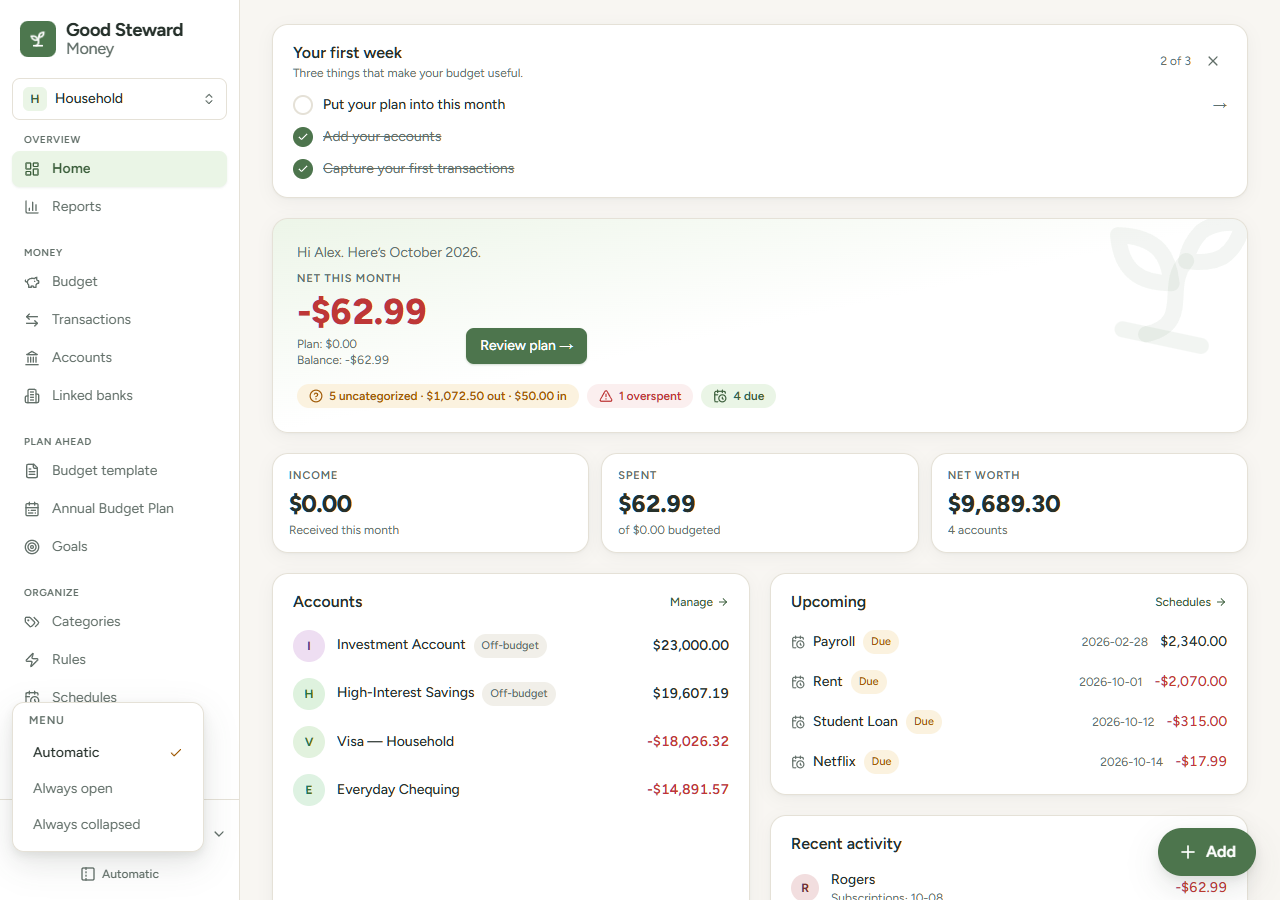
On Automatic, pointing at the narrow menu for a moment opens the full menu over the page. Moving keyboard focus into the menu also opens it. Choosing a page or pressing Esc closes it.
Press to step through the three options on a wide screen. The app saves the choice in this browser only. Other shortcuts are in [Keyboard shortcuts.
The budget switcher
Select the switcher under the logo to open a list headed Budget files. A check mark shows the active file. Choose a file to switch to it and open its Home page. Manage budget files and New budget file open the Budget files page. See Work with more than one budget file. The narrow menu shows only the first letter of the file name.
The account menu
Select your initial or name at the bottom of the sidebar. The menu has:
- Profile
- Billing
- Settings
- Theme: Light, Dark or System. The menu stays open after you choose.
- Privacy mode, which reads Privacy mode off or Privacy mode on. See Hide amounts with Privacy mode.
- Log out
On a phone
- The top bar has the logo with the Good Steward Money name, the eye button for Privacy mode, and Add. Add opens Transactions on All accounts with the full-screen Add transaction form open. The top bar doesn't show Add on the Transactions page, which has its own Add button in its toolbar. During a free trial, the trial badge takes the place of the name. If you moved from Good Steward Local, its "First payment Nov 25" badge does the same.
- The tab bar at the bottom has Home, Budget, Transactions, Reports and More.
- More opens a page titled Menu. It has your name and email (select them to open Profile), Billing, Theme, a Current budget file card with Switch, every page from the table above in the same groups, and Log out. Switch opens the Budget files page.
- An amber dot on More means a bank needs attention.