Manage categories and groups
Add, rename, hide, reorder and set up categories and groups on the Categories page.
Updated October 30, 2026
Categories are the labels you budget and report on. They sit in groups, and each group sits in a money bucket. Use the Categories page to manage them.
Open the Categories page
Select Categories in the sidebar (on a phone, More, then Categories). On Budget, select Manage categories above the groups.
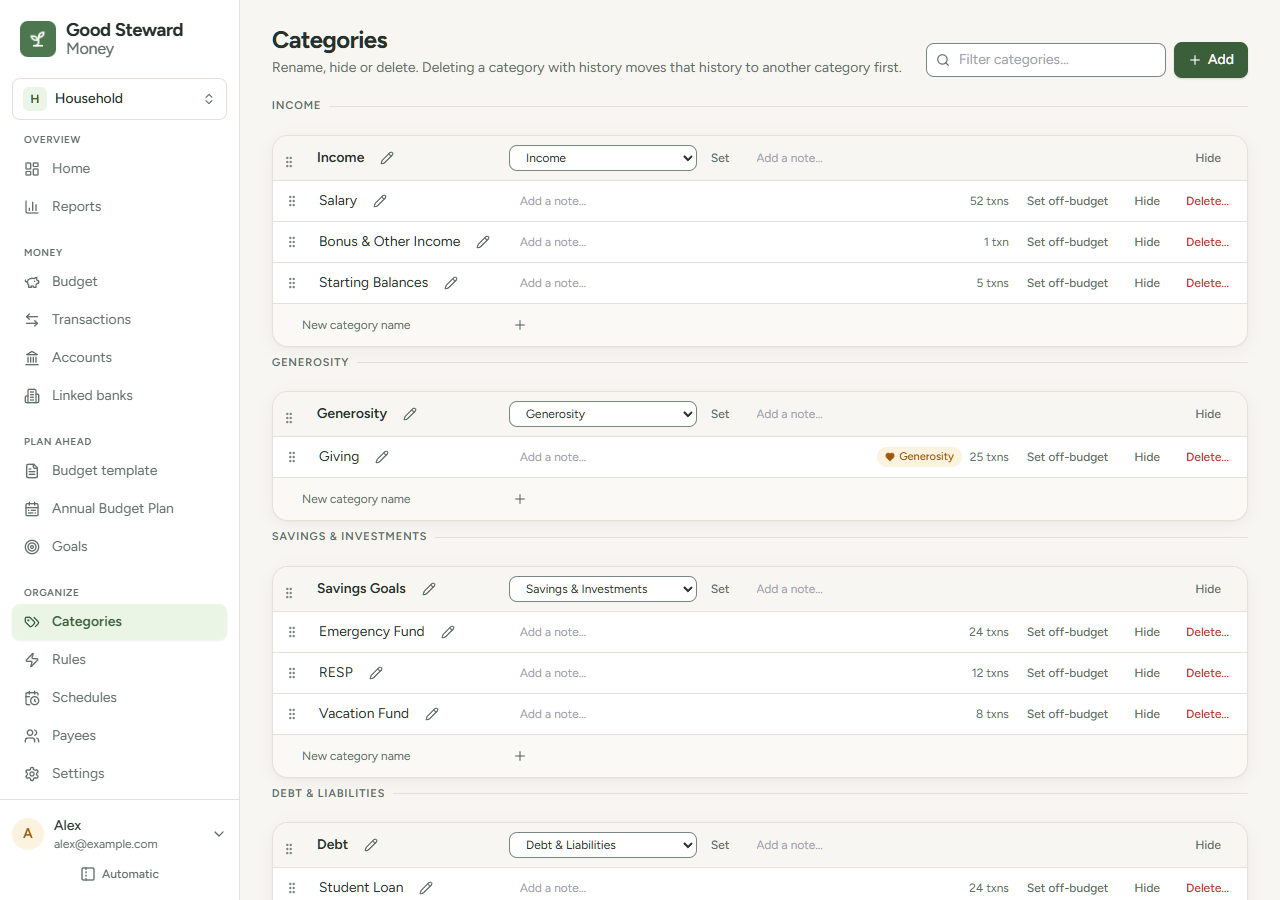
To find a category, enter part of its name in Filter categories…. Categories that do not match are hidden, and so are groups with no match. To clear the filter, select Clear filter or press Esc.
Add a category or group
- Select Add.
- To add a category, enter a Name, choose a Group and select Add category.
- To add a group, select the Group tab, enter a Name, choose a Bucket and select Add group.
A new category goes at the end of its group, and a new group at the end of its bucket. You can also enter a name in New category name at the bottom of a group and press Enter.
A category or group name can be up to 60 characters. The name box stops accepting characters at 60, whether you add or rename. A name you saved before the limit existed can stay as it is. To change it, enter a name of 60 characters or fewer.
Change a category
A note saves when you press Enter. A name saves when you press Enter or select outside the name box.
| Control | What it does |
|---|---|
| Pencil beside the name | Opens the name box. Selecting the name opens it too. Change the name, then press Enter or select outside the box to save. Press Esc to keep the old name. The name can be up to 60 characters. |
| Add a note… | Adds a note. On Budget, it appears when you hover over an expense category's name. Clear the box to remove it. |
| Set off-budget / Set for-budget | Takes the category out of budget math and cash-flow reports, for example for expenses you are repaid for. It no longer appears on Budget or the Annual Budget Plan. Its transactions keep the category. Set for-budget reverses it. |
| Hide / Unhide | A hidden category shows a Hidden badge on this page. Hiding takes the category out of the category lists for new transactions, rules and schedules, and out of automatic fills. Hiding never changes a total. Where the category still has an amount, Budget and the Annual Budget Plan list it with a small hidden label (see "Hidden categories on Budget" below). Existing transactions keep the category and show its name with the same label. If the category has a plan from this month on, has Rollover on for this month or has something that uses it, Hide opens a dialog first (see "The Hide dialog" below). Unhide is one step and changes no number. |
| Hidden with its group | Shows on a category that is not hidden itself but sits in a hidden group. It has no Hide or Unhide button. Select Unhide on the group to bring it back. A category that is hidden itself and sits in a hidden group keeps Unhide and shows "Its group is hidden too." |
| Delete | See Delete or merge a category. |
Change a group
| To | Do this |
|---|---|
| Rename the group | Select the pencil beside the group's name, or select the name. Change it, then press Enter or select outside the box to save. Press Esc to keep the old name. The name can be up to 60 characters. |
| Change its bucket | Choose a bucket in the list and select Set. The group moves to that bucket's section. |
| Add a note | Enter it in Add a note… and press Enter. A group note shows on this page only. |
| Hide the group | Select Hide, then Hide group. Its categories are hidden too, and automatic fills skip them. The dialog works the same way as for a category (see "The Hide dialog" below), with the totals taken across all of the group's categories. A group with no categories has no dialog: Hide hides it in one step. Select Unhide to bring it back. A hidden group is listed on Budget only when one of its categories has an amount, and then with only those categories. |
| Delete the group | Select Delete, then Delete group. Delete shows only for a group with no categories, hidden ones included. |
The Hide dialog
A category with nothing planned from this month on, Rollover off for this month and nothing that uses it hides in one step. Otherwise Hide opens a dialog named for the category, for example "Hide "Old Streaming Bundle"?". It shows only the lines that apply:
- What the category has, for example "It has $25.00 planned in 6 months from October 2026 on, and $12.00 carried into October." "This month" is the current month, the one Budget opens on. The carried amount is what the month before handed over, and it is left out when it is $0.
- "Hidden categories still count in your totals and are listed wherever they have an amount."
- A box, ticked at first: "Clear its plan from October 2026 on, and do not carry its balance into November." The second half shows whenever Rollover is on for this month, even if nothing was carried in, because the balance would otherwise keep carrying into the next month. When only one half applies, the box shows only that half. With the box ticked, every plan amount from this month through the last month that has one is set to $0, and Rollover is turned off for this month so the balance stays in this month. The app saves an undo step for each year it changes first, labeled "Hide" followed by the category's or group's name, so Undo on the Annual Budget Plan can put the plan back. Earlier months and all transactions are never changed.
- How many rules, schedules, goals, funding formulas and template lines use the category, with links to their pages. Rules and schedules keep working. A goal on the category and the formulas and template lines that point at it are skipped by automatic fills while it is hidden.
- "Earlier months keep their amounts. Unhide does not put cleared amounts back."
Select Hide to confirm or Cancel to leave the category as it is. With the box cleared, Hide changes only the hidden setting. For a group the button reads Hide group.
Hidden categories on Budget
Hiding a category never changes a total. It takes the category out of your lists and out of automatic fills. Where a hidden category still has an amount, it is listed with a small "hidden" label, so every total is the sum of the rows you see.
A hidden category, or a category in a hidden group, is listed on Budget in a month where it has a plan, spending or an amount carried in from an earlier month. With none of these it has no row. On the Annual Budget Plan it is listed in a year where any month has a plan.
A hidden row is dimmed, has hidden after its name and comes last in its group.
- On Budget, you can still change Budgeted, turn Rollover on or off, and select Spent to see the transactions. A hidden row cannot be renamed, given a note, dragged or given a funding formula, and it has no "Use $X for the rest of the year" choice.
- The three-dot button on a hidden row has Unhide and Manage categories. For a category that is hidden only because its group is hidden, Unhide group takes the place of Unhide. A category that is hidden itself and sits in a hidden group has both.
- On the Annual Budget Plan, the month cells of a hidden row can be changed, for example to clear a plan you no longer need. The row has no Fill or Reset row.
- A hidden category is never offered when you choose a category for a transaction, rule or schedule, or in the filter on Transactions. Report filters still list it, with the hidden label.
- If you enter the name of a hidden category, the category list's Create choice does not make a second category. When it asks which group to add it to, the group that holds the hidden category is replaced by this message: "Old Gym" is hidden. Unhide it on the Categories page.
- Automatic fills skip hidden categories: Copy last month's budget, Set budgets to 3-month average, Fill empty categories, Rebuild month, Use my template, Generate and the Budget template page's Apply. Set budgets to zero and Reset year still clear every category, hidden ones included. See Month actions.
Rename from the Budget page
You can rename without leaving Budget, in Category view or Group view.
- To rename a category, select the three-dot button beside the Rollover button at the end of its row (on a phone, at the end of the row's second line), then Rename.
- To rename a group, select the three-dot button on the group's header, then Rename group.
- Change the name, then press Enter or select outside the box to save. Press Esc to keep the old name.
If the name cannot be saved, the old name comes back and a message says why. Once it is saved, the new name shows everywhere categories and groups are listed.
Reorder
Drag the grip handle (Drag to reorder) at the left edge of a group or category, then release. The order saves automatically and applies everywhere categories are listed.
A category moves only within its group. A group moves only among groups in the same bucket. You can also drag on Budget.