The Home page
What each card and figure on Home shows, how the figures are calculated, and where each link goes.
Updated November 10, 2026
Home shows the current month for your active budget file, then your accounts, upcoming scheduled items and recent transactions. The month follows your device's time zone. Home has no month picker. Open Budget to see another month.
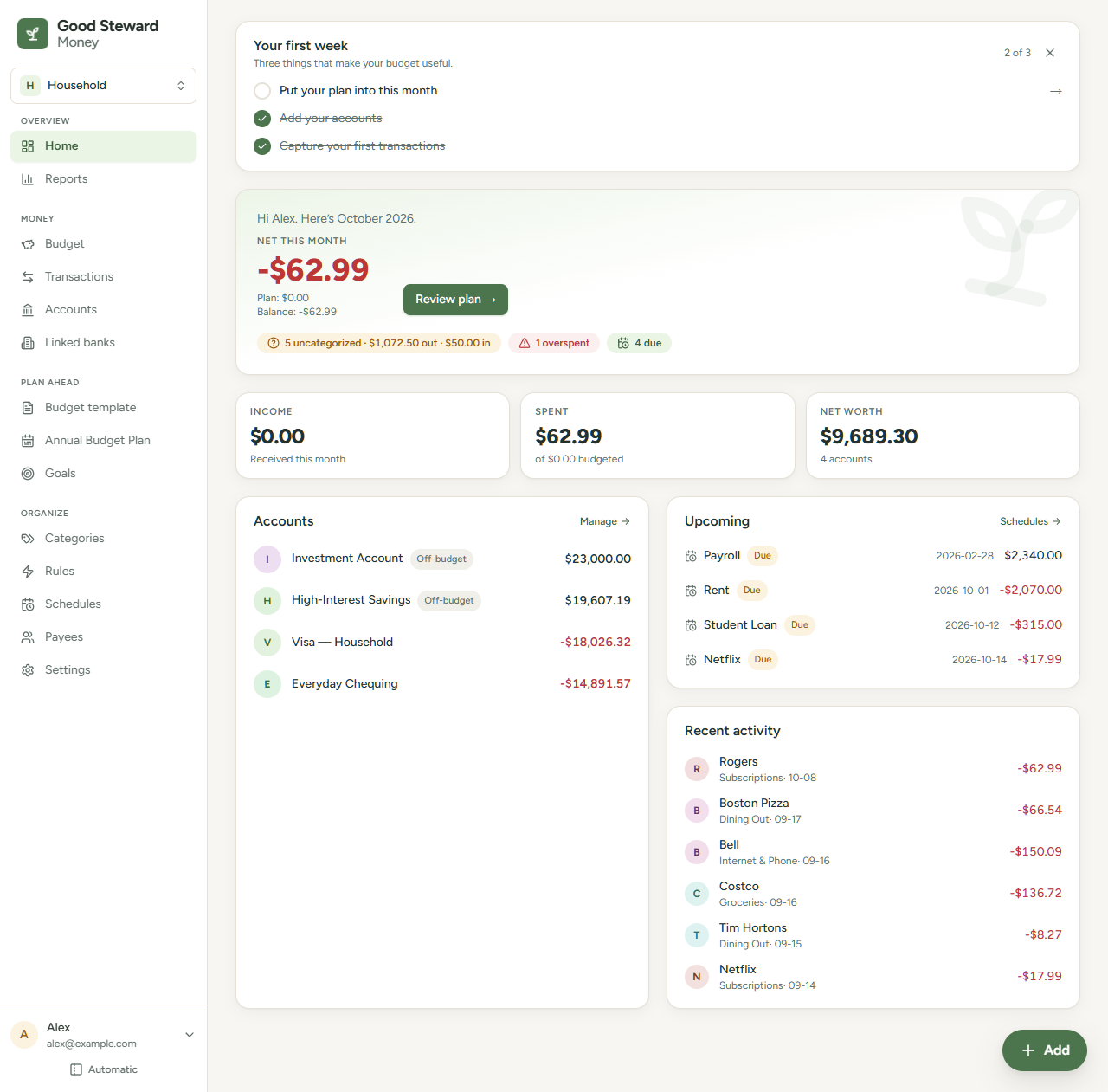
Top of the page
| Area | What it shows | Select it to |
|---|---|---|
| Your first week card | A checklist for a new budget file. It shows until you finish or dismiss it. | Open the page for an item. See Your first week checklist. |
| Bank message bar | "{Bank name} needs to be reconnected." for one bank, or "N banks need attention." for several. | Select Fix it → to open Linked banks. Select the X to hide the bar until you reload the page. See A bank needs attention or is disconnected. |
Month summary
| Item | Meaning |
|---|---|
| Greeting | Your first name and the current month. It uses "Steward" if your account has no name. |
| Net this month | Income received this month minus spending this month. Only categorized transactions in on-budget accounts count. It shows in red when negative. |
| Plan | A smaller line under Net this month. Planned income minus planned spending for the month. |
| Balance | A smaller line under Plan. Net this month minus Plan, plus any amounts carried in from earlier months by categories that carry over. See How Rollover works. |
| Carried over | A smaller line under Balance. The part of Balance that came from earlier months. It shows only when that amount is not $0.00. |
| Review plan → | Opens Budget. If you pinned a month there, it opens that month. |
Net this month, Plan and Balance include hidden categories. Budget lists a hidden category that has an amount with a hidden label, so its figures equal the sum of the rows there.
Example: you received $4,200.00 and spent $3,150.00, so Net this month is $1,050.00. You planned $4,500.00 of income and $3,300.00 of spending, so Plan is $1,200.00. Categories carried in $80.00. Balance is $1,050.00 - $1,200.00 + $80.00 = -$70.00, and the line under it reads "Carried over: $80.00".
Chips
Chips under the figures link to things that need attention, such as uncategorized transactions, overspent categories and due schedules. Each chip opens the page where you deal with it. See Attention chips.
Figure cards
| Card | Value | Line under it |
|---|---|---|
| Income | Income received this month. | "Received this month" |
| Spent | Spending this month. | "of $X budgeted", where $X is the total planned for expense categories. |
| Net Worth | The total of the balances of all open accounts, on-budget and off-budget. | The number of open accounts, for example "5 accounts". |
Accounts
The Accounts card lists up to six open accounts, largest balance first. The order ignores the sign, so a large negative balance comes before a small positive one. Each row shows the account's initial, its name, an Off-budget badge for an off-budget account, and the balance, in red if negative.
A row opens that account's transactions. With more than six accounts, the last row reads "+ N more accounts" and opens Accounts. Manage also opens Accounts. With no accounts, the card reads "No accounts yet".
Upcoming
The Upcoming card lists the four scheduled items with the soonest next date, leaving out completed items. Each row shows the name, a gold Due badge when the next date is today or earlier, the date in your chosen date format, and the amount. Schedules opens the Schedules page. With none, the card reads "No schedules yet". See See what's coming up.
Recent activity
The Recent activity card lists the six newest transactions across all accounts, newest first. A split transaction shows once, as its total, with the category "Uncategorized". Each row shows:
- The payee. A transfer reads "Transfer", and a transaction with no payee reads "No payee".
- The category, or "Uncategorized". For a transfer with no category, the account name. A category you have hidden shows its name followed by a small hidden label.
- The date as month and day, for example 10-07.
- The amount, in green for money in and red for money out.
A row opens that account's transactions. With none, the card reads "No transactions yet".
Add a transaction
Add opens Transactions on All accounts with the Add row open (on a phone, the Add transaction form). See Add a transaction.
- On a computer, a floating Add button sits at the bottom right of Home and of the Accounts pages.
- On a phone, Add is in the top bar on every page except Transactions, which has an Add button in its toolbar for the list you are viewing.
- On a keyboard, press n when you are not typing in a field. See Keyboard shortcuts.
Layout
On a wide screen, the three figure cards sit in one row, and Accounts sits beside Upcoming and Recent activity. On a smaller screen or a phone, the figure cards sit two across and the other cards stack in one column.