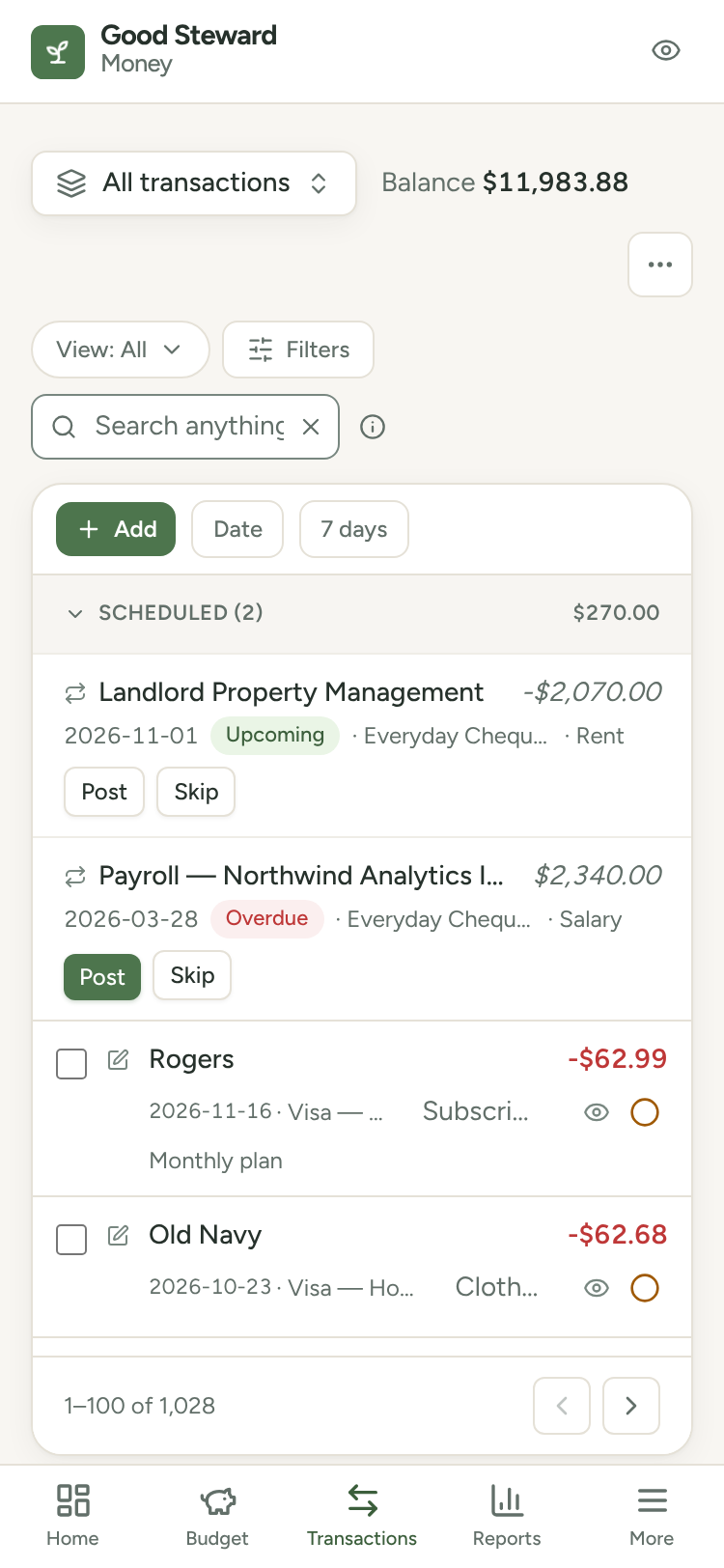
The Transactions page
What the Transactions page shows: account scope, balances, view chips, grouping, row markers, Details and paging.
Updated November 10, 2026
The Transactions page lists every transaction in your accounts, newest first.
Select Transactions in the sidebar (on a phone, the Transactions tab), or press G then T.
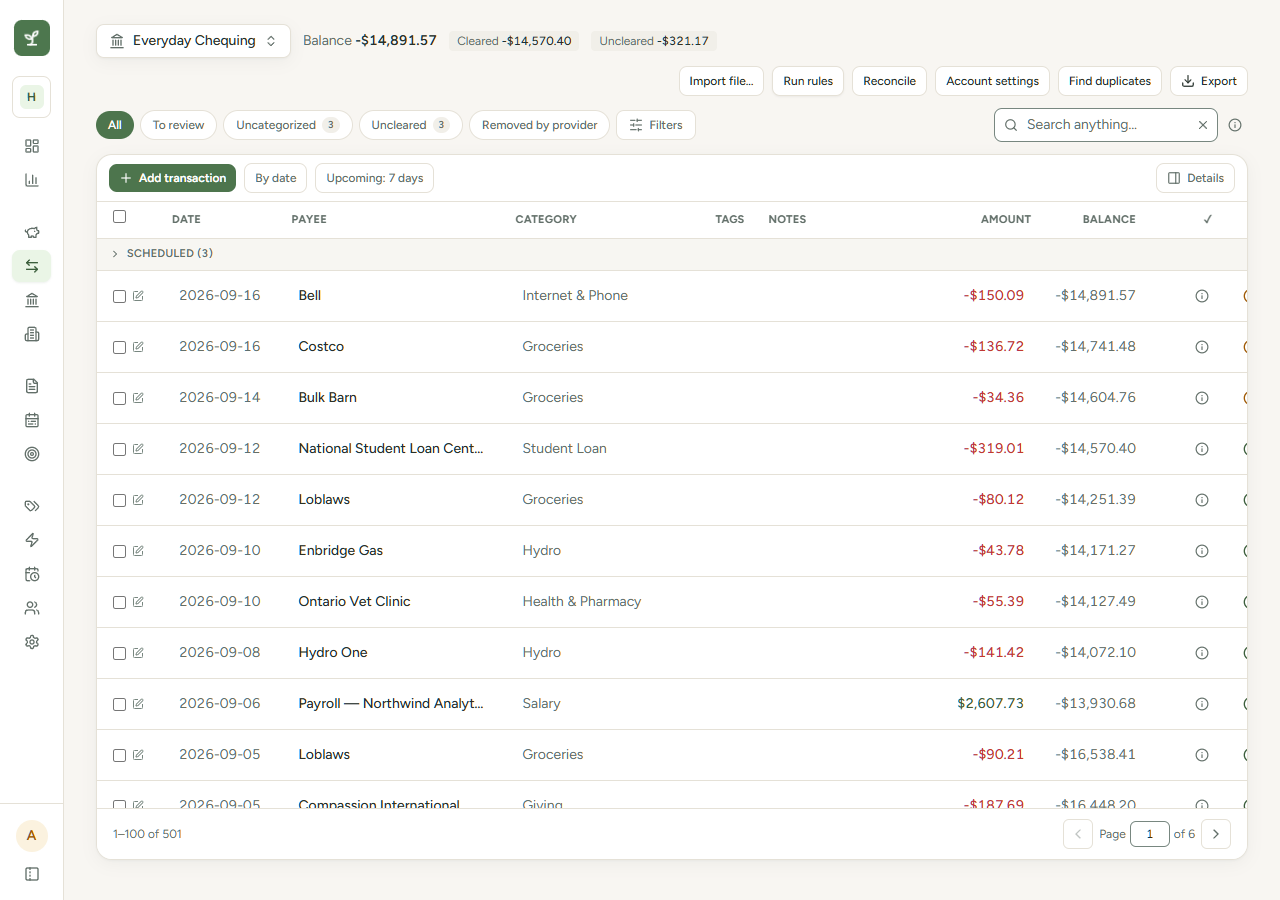
Choose what to show
The account button at the top left names what you are looking at. Select it to switch.
| Choice | Shows |
|---|---|
| All accounts | Every open account. The button reads All transactions. |
| On-budget | Accounts that count toward your budget. |
| Off-budget | Accounts tracked for net worth only. See On-budget and off-budget accounts. |
| An account name | One account. On-budget accounts are under Accounts, off-budget accounts under Off-budget. |
Each choice shows its balance. Closed accounts are left out.
Add transaction in the toolbar opens the Add row for the choice you made. On a computer, the row is the first row of the list, directly under the column headings, with a field under Date, Payee, Category, Notes and Amount and the cleared mark at the right end. When the list shows one account with no search or filter, the row also has a figure under Balance: the balance now, then the balance after the new transaction once you enter an amount. In Grouped with the cleared mark on, that figure starts from the Cleared balance. A strip under the row holds Cancel and Add. In a list of several accounts, the row has an Account field under the Account column. On a phone, Add opens a full-screen form instead. On a computer, the name in the Account column of such a list is a button that moves the transaction to another account. A bank transaction, a transfer and a split show the name as plain text, because they can't move. See Add a transaction and Edit a transaction.
Read the balances
Balance is the total of every transaction in the accounts you chose, including cleared, pending and future-dated ones. Search and filters don't change it. A split transaction counts once, at its total.
With one account selected, Cleared and Uncleared show the two parts of the balance. For example, Balance $2,450.00 is Cleared $2,500.00 plus Uncleared -$50.00. The -$50.00 is a purchase your statement doesn't show yet. See To review, Cleared and Reconciled.
An account set to Balance only shows no Cleared or Uncleared figures and no Balance column. Its Balance is the figure from your bank. See Transactions or Balance only for a bank account.
Use the view chips
The chips filter the list. A chip shows a number when it is above 0. The numbers cover the accounts you chose and ignore search and filters.
| Chip | Shows |
|---|---|
| All | Everything. |
| To review | Transactions and split lines you haven't marked reviewed. A split with a line to review shows with all its lines. |
| Uncategorized | Transactions that still need a category, including splits whose lines don't add up to the total. A split with a line that needs a category shows with all its lines. |
| Uncleared | Transactions not marked cleared. |
| Removed by provider | Bank transactions your bank stopped reporting that you haven't decided about. |
On a phone the chips collapse into one menu that reads View: All, View: To review and so on. A separate To review chip appears when something is waiting.
Order and group the list
The list is always newest first, and you can't sort by column.
The button next to Add transaction switches between By date (phone: Date) and Grouped (phone: Grp). Grouped puts Uncleared transactions on top and Cleared ones below. Each section header has a collapse arrow.
With no search, view chip or filter, in one account or several, each section header also shows the section's total, on a phone too. Uncleared (N) counts every uncleared transaction in the accounts you chose. With Pending shown, that count matches the Uncleared chip and the two totals add up to Balance: Uncleared -$431.63 and Cleared $3,631.63 make $3,200.00. In All accounts, the totals and Balance include off-budget accounts. With Pending hidden, the count and the totals leave out the pending transactions you hid.
Under a search, view chip or filter, Grouped groups each page on its own, with no totals, and Uncleared (N) counts only that page's uncleared transactions.
When your bank has reported pending transactions, a Pending shown button appears. Select it to switch to Pending hidden, which removes pending transactions from the list. Balance still counts them. See Pending, possible match and removed transactions. This device remembers both choices.
Read a row
| You see | It means |
|---|---|
| A cloud beside the checkbox | The transaction came from your bank. |
| A pen beside the checkbox | You entered it by hand, or a schedule posted it. |
| No icon | The source is unknown, for example a CSV import. |
| Gold tint and a gold bar | To review. A split's top row (on a phone, its card) has them while any of its lines is To review. On a computer, each line that is To review has them too. |
| Split (3) | A split with three lines. If the lines don't add up to the total, the row under the lines shows the gap, such as "-$15.00 left". While Collapse splits hides the lines, and on a phone, a gold pill shows the gap instead. |
| To Savings or From Savings | A transfer to or from an account named Savings. |
| A category name followed by hidden | The category is hidden on the Categories page. The transaction keeps it and still counts in your totals. |
On a computer, a Balance column shows the running balance when you view one account with no search or filter. On the first page, the top row shows the account's Balance. On each later page, the column continues from the last row of the page before. In Grouped, the top row of the first page is the top Uncleared row, and the column continues into the Cleared section without a break. For example, with the balances above and one uncleared -$50.00 purchase, the purchase shows $2,450.00. The first Cleared row shows $2,500.00, which is $2,450.00 minus the -$50.00. With Pending hidden, the column leaves out the pending transactions you hid, so the top row shows Balance minus their total.
On the first page, the Scheduled section above the list shows the upcoming and overdue scheduled items in the accounts you chose. A search, a filter or the Uncategorized chip narrows it to the items that match. The To review, Uncleared and Removed by provider chips hide it, and so does any choice but Any in Cleared, Reviewed or Reconciled. For one account with no search or filter, its rows show the account's balance once that item and every nearer one post. The column runs on from the nearest scheduled row into the list, so its balance minus its amount is the top row's balance. With Pending hidden, the scheduled rows also leave out the pending transactions you hid. In other views the scheduled rows have no balance, and in a list of several accounts they show the Account column. When the section lists any items, its header shows the total of their amounts, on a phone too. See See what's coming up.
Open Details
On a computer, select Details at the top right of the list to open a panel. With nothing selected, it shows a summary: the balance and the counts for Transactions, To review, Uncategorized and Uncleared, plus Cleared balance for one account. While a search or filter is on, a Filtered card comes first. It shows the total of the matching transactions and the same four counts for only those transactions. The card below it still covers the account or view you chose. Select a row to edit it there. Select checkboxes to see bulk actions.
On a very wide screen, Details is a column beside the list and the button reads Hide details. On a smaller screen it opens over the list.
Move between pages
Each page holds 100 transactions. The footer shows a range such as 1–100 of 1,234. Use the arrows, or enter a number in the Page box. The list returns to the top when the page changes. When splits are in view, a second figure such as "(1,300 incl. split lines)" counts each split line separately. A phone shows neither.
In Grouped view with no search, view chip or filter, in one account or several, Uncleared transactions show on the first page only. The pages and the footer count only Cleared transactions, and later pages show only the Cleared section. For example, an account with 12 uncleared and 250 cleared transactions has three pages. The first page shows all 12 uncleared transactions and the newest 100 cleared ones, and the footer reads 1–100 of 250. If more than 500 transactions are uncleared, the first page shows the newest 500 and the Uncleared header adds "showing the most recent 500". The count and the total still cover all of them. With 612 uncleared, a link below the section's last row reads Show all 612 uncleared. Select it to turn on the Uncleared chip for the same accounts. The list then shows all 612 across its pages, with no Balance column. By date also shows every transaction, with its running balance when you view one account.
Use the account actions
These buttons sit beside the balance. On a phone they are in the More actions menu (the three-dot button).
| Button | Shows for | Learn more |
|---|---|---|
| Import file… | One account | Import transactions from a file |
| Run rules | One account | Run rules on transactions you already have |
| Review all | One account with transactions to review | Marks them reviewed |
| Reconcile | One open account | Reconcile an account |
| Account settings | One account | Rename, close or manage the account |
| Find duplicates | Any view | Find and remove duplicate transactions |
| Export | Any view | Export transactions to a spreadsheet |
Use the page on a phone
Select a card to open Edit transaction (for a split, Split transaction). On a card you can change the category and the review and cleared status. On a split card, select a line's category to change it (it reads Categorize… while the line has none). A line that is a transfer shows the other account's name and has no category button. The eye beside a line marks that line reviewed or puts it back to To review. A phone has no inline editing of other values, no Details button and no summary. Select Add in the toolbar to open the Add transaction form.