The Annual Budget Plan
A grid of your planned amounts for all 12 months of a year. It uses the same amounts as the Budget page.
Updated October 16, 2026
The Annual Budget Plan is a grid of your planned amounts: one row for each category and one column for each month of a calendar year. It shows the same planned amounts as the Budget page, for all 12 months at once.
The page is optional. You can budget one month at a time on the Budget page and never open the grid. Use the grid to work on many months at once.
To open it, select Annual Budget Plan under Plan ahead in the sidebar (on a phone, the More tab, then Annual Budget Plan). You can also select See all 12 months on the Budget page, or press G then P.
Same amounts as the Budget page
Each cell is the amount you plan for one category in one month. It is the Budgeted amount for that category and month on the Budget page. There is one amount, not two. Change it in either place and both show the change.
For example, the March 2027 cell in the Groceries row is $650. On the Budget page, Budgeted for Groceries in March 2027 is also $650. If you change it there to $700, the grid cell shows $700.
What the grid shows
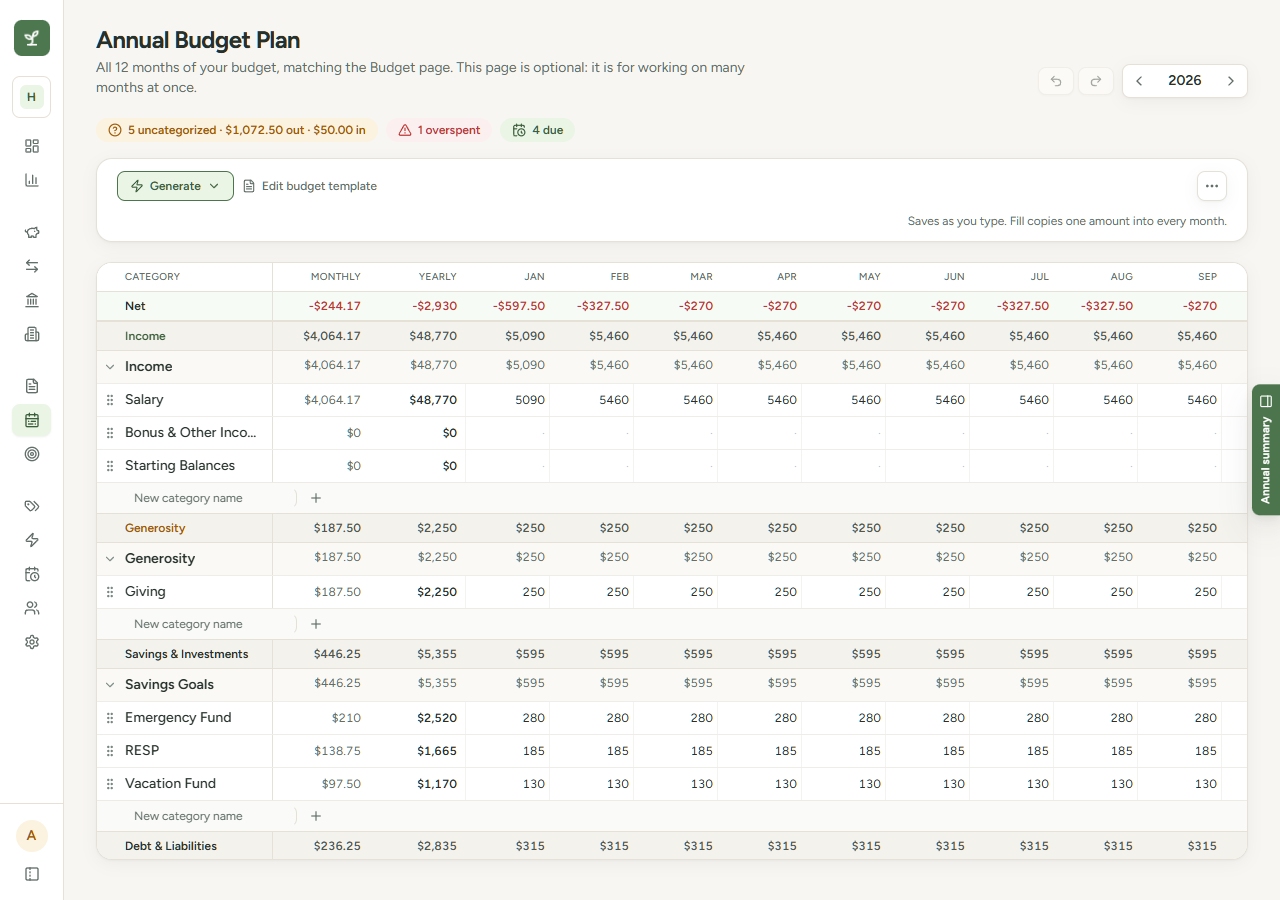
Rows are grouped by money bucket in this order: Income, Generosity, Savings & Investments, Debt & Liabilities, Expenses. Under each bucket are its groups, then each group's categories. A bucket with no groups does not appear.
The columns are Category, Monthly, Yearly and Jan to Dec. Select a month name to open that month on the Budget page.
- Yearly is the total of the 12 months.
- Monthly is Yearly divided by 12, rounded to the cent.
- The Net row at the top is Income minus every other bucket, for each month and for the year. A negative Net is red.
For example, a month with Income $5,000, Generosity $500, Savings & Investments $750, Debt & Liabilities $400 and Expenses $3,100 has a Net of $250: $5,000 - $500 - $750 - $400 - $3,100.
The grid lists a hidden category, or a category in a hidden group, only in a year where one of its 12 months has a plan. It is dimmed, has a small hidden label after its name and comes last in its group, and its month cells can still be changed. A hidden group is listed only when one of its categories has a plan. Hidden categories count in the totals, so Yearly, the bucket rows and Net equal the sum of the rows you see. The grid does not list off-budget categories. See Manage categories and groups.
The grid is wider than most screens, so scroll sideways to see all months. The Category column and the header row stay in place while you scroll. On a phone, one card per group replaces the grid. See Plan your year.
Where the amounts come from
- You enter them in the grid or on the Budget page.
- Generate fills the year from your template, from last year or from a recent average. It skips hidden categories. Reset year clears every category, hidden ones included. See Generate a year's plan.
- Applying a budget template writes its lines into the year. See Apply a template to your year.
- The Month actions menu on the Budget page fills one month. See Month actions.
- The plan step of the guided setup (Start my budget) writes amounts from the current month through December. See Pencil in your first plan.
Each budget file has its own plan
Planned amounts, templates and undo history belong to the budget file you are using. Switching budget files shows that file's plan. See Work with more than one budget file.