Categorize transactions automatically with rules
Create a rule that sets a category, payee or other field on transactions that match your conditions.
Updated October 30, 2026
A rule sets a category, payee or other field on transactions that match conditions you choose. Rules run on transactions as they arrive.
Steps
- Select Rules in the sidebar (on a phone, select the More tab, then Rules).
Select New rule.
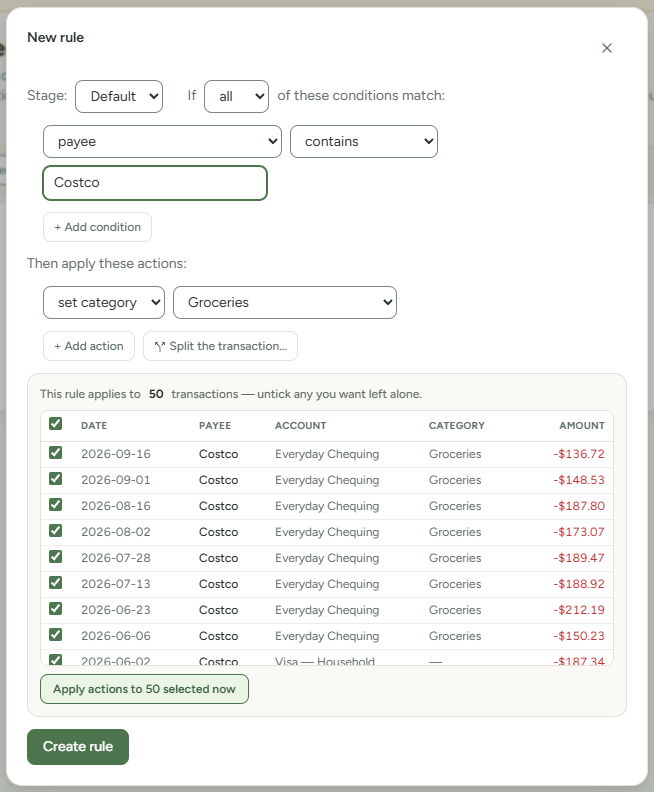
- Leave Stage as Default. How rules run explains stages.
- Next to If, choose all (every condition must match) or any (one match is enough).
- In the first condition row, choose a field and an operator, then enter a value. For example, payee, contains,
Costco. - To add a condition, select + Add condition. To remove one, select ×.
- Under "Then apply these actions:", choose an action and set its value. For example, set category and a category.
- To add an action, select + Add action.
- Check the list under "This rule applies to N transactions". It shows your existing transactions that match.
- Select Create rule.
The rule applies to new transactions. To change transactions you already have, see Run rules on transactions you already have. Rule conditions and actions lists every field, operator and action.
Create rule stays unavailable until the rule has at least one condition and one action, each with a value. A row with no value is left out when you save.
Create a rule from a transaction
Each time you choose a category for one transaction, a message asks "Categorized “Costco”. Do this automatically next time?" It stays for 5 seconds.
- On Transactions, choose a category for one transaction. Use the Category column, or Details and then Save.
- In the message, select Create rule to save a rule, or Customize to review it first.
Create rule saves a rule at stage Default with one condition, payee is the transaction's payee, and the action set category with the category you chose. It matches every later transaction with that payee, whatever the amount.
Customize opens the New rule from transaction dialog for a narrower rule. Its conditions are imported payee is the transaction's imported payee (for a bank transaction, the Bank description shown in Details) and amount is approximately its amount (within 7.5%). If the transaction has no imported payee, for example one you entered with a category you chose, the first condition is payee is its payee instead. Edit or remove a row to match more transactions, then select Create rule.
The dialog opens on top of Transactions, so the list stays where it was. Select Create rule to save, or the X to close without saving. Either way you return to the same list, with the same account, filters, search and page.
You can also select a transaction, then select Create rule in the selection bar. The dialog fills in from the first selected transaction and opens the same way. Your selection stays as it was.
The message does not appear after a bulk change, for a split line, when you accept a suggested category, add a transaction or clear a category, when a saved rule already matches the transaction, or when the transaction has no payee. It appears again each time you categorize a transaction that meets these conditions, even for the same payee.
Edit, copy, find or delete a rule
- To edit a rule, select the pencil icon on its row, change it and select Save changes. The rule keeps its place in its stage.
- To copy a rule, select the copy icon on its row. The Copy rule dialog opens with the original's stage, conditions and actions filled in, including any split. Change what you want, then select Create rule. Nothing is saved until you do. The copy goes to the end of its stage. The original does not change.
- To find a rule, enter text in Filter rules…. It searches the stage, conditions and actions.
- A rule that sets or matches a hidden category keeps working. Its row shows the category name with a small hidden label, and Filter rules… still finds it by name.
- To delete a rule, select the trash icon, then Delete rule. Existing transactions keep their categories.