Work with more than one budget file
Create, rename, switch and delete budget files, and see what each file keeps separate.
Updated November 10, 2026
A budget file is a separate budget with its own accounts, categories, transactions and planned amounts. Use more than one to keep household and business budgets apart.
What each file keeps
Each budget file has its own accounts, categories, payees, tags, transactions, rules, schedules, goals, planned amounts, budget templates, saved views, report targets and Trash. The Auto categorization and New transaction defaults settings are also per file.
Your sign-in, profile, billing plan (the plan on Billing) and Date format apply to every file.
Bank connections belong to you, not to a file. Linked banks lists every bank you have connected, from any file. See Bank connections and your plan for how files affect the count.
Open the Budget files page
Select the budget switcher at the top of the sidebar (the button that shows your active file's name), then Manage budget files. On a phone, select the More tab, then Switch in the Current budget file card.
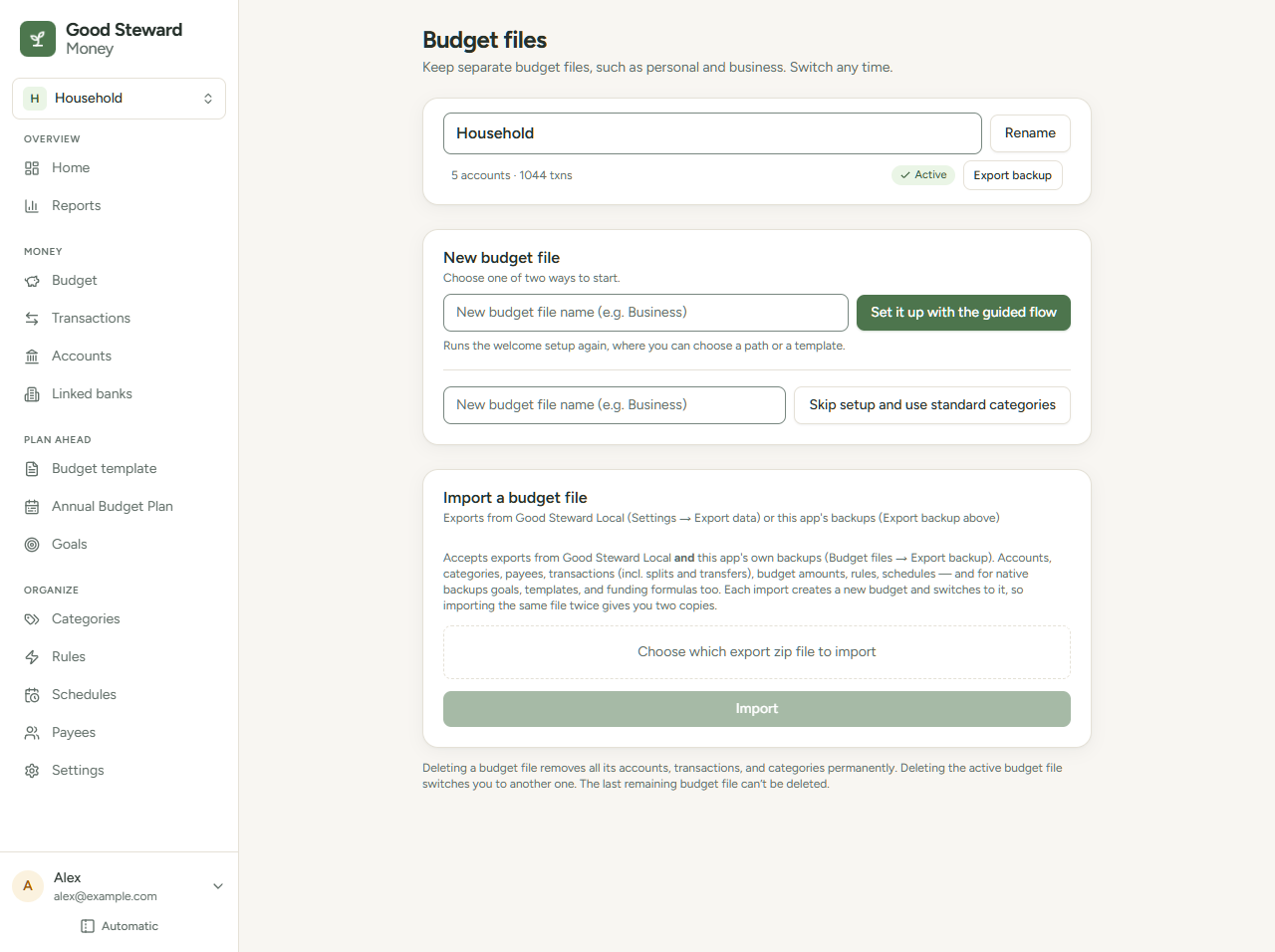
The open file has an Active badge. You can have any number of files.
Create a budget file
- Open the Budget files page, or choose New budget file in the budget switcher.
- In the New budget file card, enter a name in the box next to the option you want.
- Select Set it up with the guided flow, or select Skip setup and use standard categories.
- The guided flow opens setup. Your answers on A bit about your life are filled in from your most recent setup. See Use the guided setup.
- The standard set opens Budget with the standard categories and no accounts. See Setup paths and life templates.
The new file becomes the active file.
Switch budget files
Choose a file in the budget switcher, or select Switch to on a file's card on the Budget files page (the only way on a phone). Home opens with that file's data. Each browser and device keeps its own active file.
Rename a budget file
- On the Budget files page, edit the name in the box at the top of the file's card.
- Select Rename.
An empty name changes nothing.
Delete a budget file
- On the Budget files page, select Delete on the file's card.
- Select Delete this budget file.
Delete shows only when you have two or more files. If you delete the active file, the oldest remaining file becomes active and Home opens.
Deleting a file does not disconnect its banks. They stay in Linked banks and keep counting toward your plan's bank limit until you disconnect them.
Restart setup or copy a file
To run setup again on a file with no transactions, see Skip setup or start it again. To copy a file, download a backup and import it.