Reconcile an account
Match an account to your statement or bank balance, add an adjustment for any difference, and lock the Cleared transactions.
Updated November 5, 2026
Reconcile an account to confirm that its balance in Good Steward matches your statement or your bank. Reconciling adds a transaction for any difference and locks the Cleared transactions.
An account set to Balance only cannot be reconciled, and its page has no Reconcile button. Its balance is the figure your bank reports. To reconcile it, open its settings page and change Balance from to Transactions. Otherwise, wait for your bank's next figure. An account no longer connected to a bank offers Track by hand on its settings page, after which it can be reconciled. See Transactions or Balance only for a bank account.
Before you start
- Mark each transaction on your statement as Cleared. See To review, Cleared and Reconciled. On a bank-linked account, the bank sets Cleared on the transactions it supplies.
- Have the ending balance from your statement.
Steps
- Open the account's transactions: select the account's name on Accounts, or choose the account from the menu at the top left of Transactions.
Select Reconcile. On a phone, select More actions (three dots), then Reconcile. The button shows only when the page shows one open account.
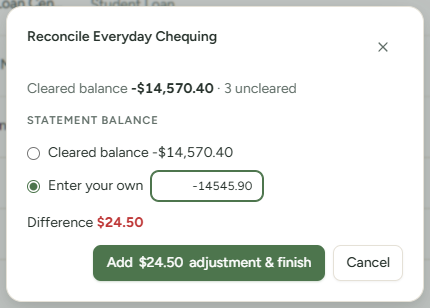
Under Statement balance, choose one option. Nothing is chosen at first. The line above shows the Cleared balance and how many transactions are uncleared.
- Cleared balance: use the Cleared total as it is.
- Bank balance: use the last balance your bank reported. It shows only for a bank-linked account whose bank has reported a balance.
- Enter your own: enter your statement balance, for example
2,110.00.
- Check the Difference line. It is the statement balance minus the Cleared balance. It is green at zero and red otherwise.
- Select Finish reconciliation. If the difference is not zero, the button reads Add $24.50 adjustment & finish (with your amount) instead.
A message such as "Reconciled to $2,110.00. 14 transactions locked." appears. If the app added an adjustment, the message also says "An adjustment of $24.50 was added."
What the adjustment is
The adjustment is a Cleared transaction dated today. It has the note "Reconciliation adjustment" and no payee or category. It is locked with the rest and starts as To review. On an on-budget account it also shows under Uncategorized.
Example: a Cleared balance of $2,085.50 and a statement balance of $2,110.00 give a difference of $24.50. The adjustment is $24.50.
To keep your categories accurate, find the missing transaction instead. Add it and mark it cleared, then reconcile again.
What reconciling locks
Reconciling locks every Cleared transaction in the account that is not already locked, whatever its date. A lock icon replaces the cleared mark. Uncleared transactions stay unlocked.
| Change to a locked transaction | What happens |
|---|---|
| Amount or date | A Reconciled transaction dialog asks first. Choose Change it anyway or Keep as is. |
| Payee | The same dialog asks first. |
| Category or notes | No prompt. |
| Bank sync | Leaves it unchanged. |
To remove the lock from one transaction, select its lock icon and confirm in the dialog that opens. While a transfer is locked, you can't re-point it or turn it into a normal transaction. See I can't change a transaction.
Undo does not reverse a reconciliation. Remove locks one transaction at a time.