Search and filter transactions
Find transactions with the search box, the view chips and the Filters editor, and save a combination as a saved view.
Updated November 10, 2026
Search finds a transaction by what you remember about it. View chips, filters and saved views narrow the list.
Search
- Select Transactions in the sidebar (on a phone, the Transactions tab).
- Select the Search anything… box, or press /.
- Enter what you want to find. The list updates after a short pause, or when you press Enter.
To clear the search, select the X in the box or press Esc. Search covers only the account or group shown at the top left.
| Enter | Finds |
|---|---|
A word, such as coffee | Payee, notes, category and account names that contain it. This includes hidden categories. A split transaction also matches on the payee, category and notes of each of its lines. |
An amount, such as 24.99 | Exactly $24.99, money in or out. A $ and commas are ignored. |
An amount with one decimal, such as 24.9 | Any amount from $24.90 to $24.99, money in or out. |
A whole number, such as 50, or one followed by a point, such as 50. | Any amount from $50.00 to $50.99, money in or out. |
A full date, such as 2026-10-07 | Transactions on that date. Your Date format in Settings also works, such as 10/07/2026 for MM/DD/YYYY. |
tag:groceries or #groceries | Transactions with a tag whose name contains "groceries", including tags on split lines. A plain word doesn't search tag names. |
An amount search narrows as you add digits. Entering 15 finds $15.00 to $15.99, 15.8 finds $15.80 to $15.89 and 15.81 finds only $15.81. A split transaction matches when its total or any one of its lines has that amount. The search also lists transactions whose text contains what you entered.
Switch views
Select a chip below the account name and balance: All, To review, Uncategorized, Uncleared or Removed by provider. On a phone, a View: menu replaces the chips.
Use filters
Select Filters.
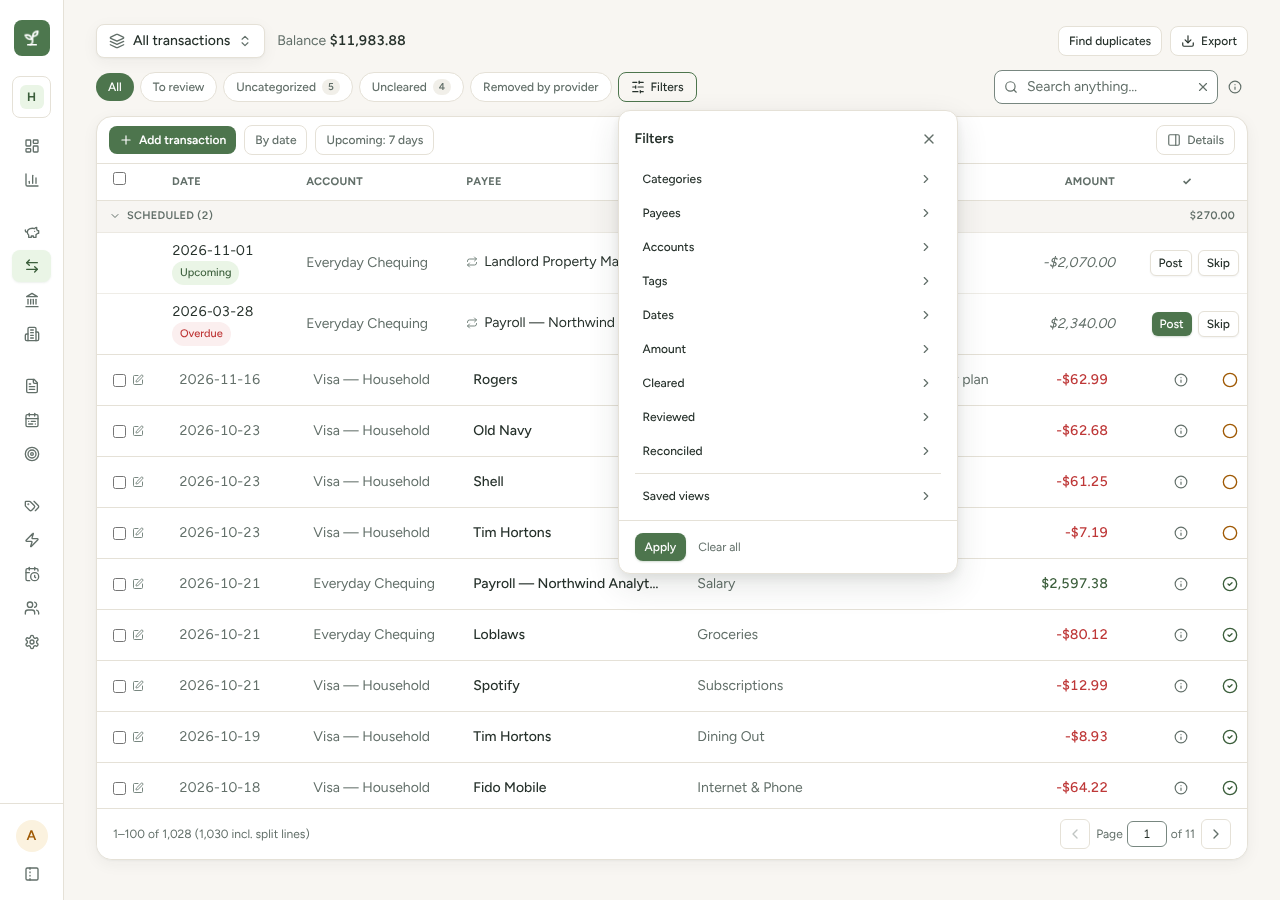
- Select a field from the list.
- Choose its values, then select Back to set another field.
- Select Apply. Your edits take effect only then.
| Field | How it works |
|---|---|
| Categories, Payees, Accounts, Tags | Select one or more. |
| Dates | Choose a start date, an end date or both. Both days are included. |
| Amount | Choose Both, Money out or Money in, then enter Min, Max or both. With Both, the range applies to the size of the amount, so 50 to 100 finds -$75.00 and $80.00. A split transaction matches when its total or any one of its lines is in the range. |
| Cleared, Reviewed, Reconciled | Choose Any or one state, such as Cleared or Uncleared. |
Several values in one field match any of them. Different fields must all match, along with the search and the view chip.
Active filters show as chips below. A number on Filters counts them. Select a chip to change it, or × to remove it. Clear all removes the filters but keeps the search, view chip and account.
- The Categories list never offers a hidden category. If you reach the ledger from a report or from a transactions link on Budget, a hidden category in the address shows as a chip with its name and "(hidden)", for example "Category: Old Gym (hidden)". It is ticked at the top of the Categories list, so you can untick it. Once you do, it is not offered again.
- The Accounts filter narrows within the current view. To look at one account, choose it at the top left instead.
- Filtering by category or payee lists matching split lines as their own rows.
- Uncategorized lists a split with a line that needs a category as the whole split: the transaction, with all its lines under it. The line that needs a category shows Categorize…. Select it and choose a category. On a phone, the category list opens as a sheet from the bottom of the screen. Also on a phone, a line that is a transfer shows "To" or "From" and the other account's name instead of Categorize…. To give it a category, select the card, choose the line's category in Split transaction, then select Save. The count on the chip counts lines, so a split with two such lines counts 2 but shows once.
- To review works the same way: it shows a split with a line to review as the whole split, and the count on the chip counts lines.
- Reviewed in Filters also checks each split line, so a split shows, as the whole split, when one of its lines is in the chosen state. Combined with Uncategorized, a single line must match both: a split with one line that needs a category and a different line to review doesn't show under Uncategorized with To review.
- Export with the Uncategorized or To review chip on, or Reviewed set in Filters, writes only the matching lines, not the rest of their split. Select all … matching this filter in these views selects the same transactions the list shows.
- While a search or filter is on, the Filtered card at the top of the Details panel shows the total and counts for the matching transactions. See The Transactions page.
- The search, the Uncategorized chip and the Categories, Payees, Accounts, Tags, Dates and Amount filters also narrow the Scheduled section above the list to the scheduled items that match. When none match, the section is hidden. The To review, Uncleared and Removed by provider chips, and anything but Any in Cleared, Reviewed or Reconciled, hide it too. See See what's coming up.
Save and reuse a view
- Set the account, view chip, search and filters you want, then select Apply.
- Select Filters, then Saved views.
- Enter a name in Name this filter set…, then select Save.
To use a saved view, select its name. It replaces the current account, view chip, search and filters. The icons beside a name update the view with what is on screen now, rename it, or delete it. Delete asks for no confirmation.