Set up funding formulas
Add formulas to expense categories so the app works out their Budgeted amounts, then run them for a month or a year.
Updated November 1, 2026
A funding formula works out the Budgeted amount for an expense category. You add formulas to categories, then run them. To categorize transactions automatically, use rules instead.
Add a formula
- Select Budget in the sidebar (on a phone, the Budget tab) and choose a month.
Select the lightning icon next to an expense category's name. In Group view, open the group first. Income categories and hidden categories have no icon. The icon is green when the category has a formula.
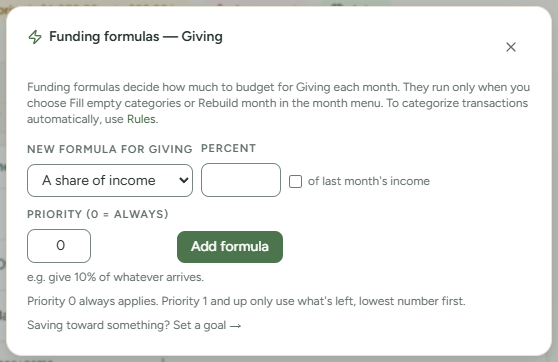
Under New formula for the category name, choose a type:
- A share of income: enter a Percent. Check of last month's income to use last month's income instead of this month's.
- Follow my bills: choose a bill in Schedule. See Set up a recurring bill or income.
- Leave Priority (0 = always) at 0, or enter a higher number.
- Select Add formula.
Under each formula, the dialog shows what a rebuild would plan for the month you are viewing and why, for example "October 2026: $400.00 — 10% of income received this month ($4,000.00)". When more than one formula or template line applies, it also shows a total.
Edit or delete a formula
Select a formula's line to open its fields, change them and select Save. Select the trash icon (Delete formula) to delete it. There is no confirmation.
A formula tagged from goal shows "managed on Goals". Change it on Goals. See Set up a goal. For a goal with a deadline, the formula counts the money moved into the category before the month it plans, the same money the goal card counts. It plans an amount for each month up to and including the deadline month. In the current month, that amount is the card's Needs as it stood at the start of the month. After the deadline month it plans nothing. Money moved in during a month lowers the next month's amount, not that month's. The dialog then says, for example, "$1,200.00 still needed over 3 months, counting money moved in before this month; the $400.00 moved in this month counts from next month". Money moved in during the deadline month lowers no amount, because the formula plans nothing after that month. In the deadline month the dialog says that money "is not counted in this month's plan". For a later month, the formula also counts the amounts planned from the current month on that are not yet moved, so a run over several months spreads the target evenly. An older formula with a By month that is not from a goal still counts the Balance carried into the category. Budget template lines show under From your plan template. Select Edit in the budget template to change them.
Run your formulas
A formula changes nothing until you run it. Each of these runs every formula, every goal formula and the active Budget template's lines:
| Where | What it writes |
|---|---|
| Month actions > Fill empty categories from your funding formulas (Category view) | This month, categories at $0 only |
| Month actions > Rebuild month from your funding formulas (Category view) | This month, replacing amounts, after a confirmation |
| Month actions > Apply my template (Group view), or Use my template on the empty-month card | This month, categories at $0 only |
| Generate > From my template, rules & goals… on the Annual Budget Plan | A start month through December |
| Apply on the Budget template page | A start month through December |
See Month actions.
Priority
Priority 0 applies in full. Priority 1 and higher use only what is left of planned income after the amounts already planned for the month and the formulas that ran before them. The lowest number runs first. Without planned income, formulas at priority 1 or higher receive nothing.
Notes
- A formula on a hidden category, or a category in a hidden group, is skipped by every fill and rebuild. It comes back into use when you unhide the category.
- A share of income in Fill empty and Rebuild uses income received so far this month, so it plans $0 before income arrives. Generate, Apply, Apply my template and Use my template use planned income when it is higher. of last month's income always uses income received last month.
- Follow my bills plans the amount the schedule has due that month, less any balance already carried into the category.