Split a transaction
Divide one transaction into lines with their own categories and amounts, such as groceries and household items on one receipt.
Updated November 10, 2026
Split a transaction when one payment covers several categories. The transaction keeps its total. Each line has its own category and amount, and can have its own payee and notes.
Split in Details
- Select the transaction. On a phone, select its card. Edit transaction opens.
Select ⑂ Split this transaction.
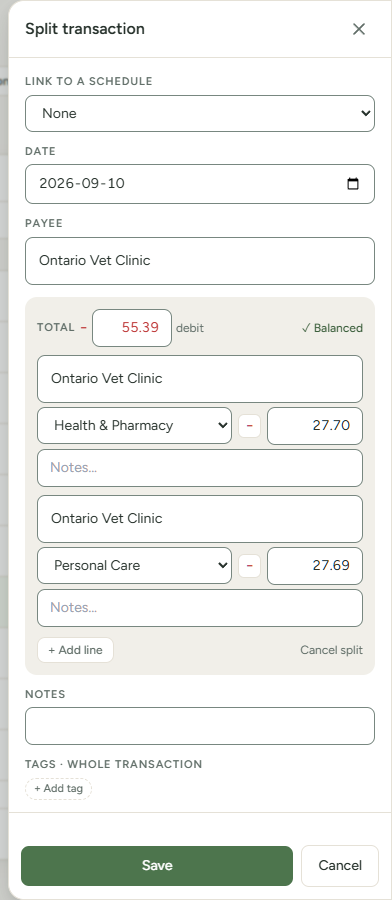
- For each line, choose a category and enter an amount. Enter amounts without a sign.
- Select + Add line if you need more than two lines.
- Select Distribute to share the amount left equally across the lines that have no amount.
- Check that the readout says ✓ Balanced, then select Save.
To switch a line between money in and money out, select its + or − button. Use this for a refund inside a purchase.
If one Save in Details changes both the transaction's own details (date, payee or notes) and a line, it records two entries, "Edit transaction" and then "Split transaction". Select Undo once to put the lines and the Total back, and a second time to put back the date, payee and notes.
On a phone, a line's category and payee open as a sheet from the bottom of the screen. The keyboard stays down until you select the search box. In the category list, categories other than income and off-budget ones show their balance from the Budget page for the month in Date, as in the single-category field. Choose a name to use it, or select the X at the top of the sheet to leave without choosing.
Split in the list (computer)
- Select the transaction's category, or Categorize….
- Choose ⑂ Split this transaction. The first line keeps the category and the full amount. The second line is empty.
- Select the first line's amount and enter its share.
- Choose a category for each line. Select Distribute to fill the empty line.
- Select + Add line for more lines.
Each change saves at once.
Split while adding
- In the Transactions list, select Add transaction (on a phone, Add). If the list shows more than one account, choose an on-budget Account.
- Enter the total in Amount. On a computer, the button on its left shows − for money out and + for money in. On a phone, choose Money out or Money in.
- Open the Categorize list and choose ⑂ Split this transaction. On a computer, it is the first entry in the list, and ↓ and ↑ stop on it. The category cell reads Split (2), and two lines open under the row. On a phone, the field reads Split (2) and the lines open under it. If Amount is empty, the cursor goes there so you can enter the total.
- Choose a category and enter an amount for each line, without a sign. Select + Add line for more lines. Select × to remove a line. A split needs at least two lines. On a computer, Tab skips the × buttons, so use the mouse for them.
- Select Distribute to share the amount left equally across the lines that have no amount.
- Check that the text under the lines says ✓ Balanced, then select Add. On a computer, you can press Enter in a line's amount instead.
Add stays dimmed until the lines add up to the total. The reason shows on the strip under the lines (on a phone, under Add), for example "Lines don't add up to the total". The text under the lines shows the amount left, such as "-$5.00 left". On a computer, while the lines don't add up, Enter in the last line's amount adds a line, and in any other line it moves to the next line's category. Select Remove split to go back to one category.
On a computer, the strip also holds Cancel, which closes the row without saving.
Fix a split that doesn't add up
Use Distribute or change an amount, either in Details or under the lines in the list.
You can save a split whose lines don't add up to the total. On a computer, the gap, such as "-$15.00 left", shows under the lines, beside Distribute. When the lines add up to more than the total, it reads "$25.50 over" instead. While Collapse splits hides the lines, a gold pill beside the amount shows it instead. On a phone, the gold pill sits beside Split (N) on the card. The transaction appears under Uncategorized until the lines match the total.
Remove a split
Select Remove split in Details or under the lines in the list. The lines are removed. The transaction keeps its total and has no category. Before you save a new split, Cancel split closes the editor.
How a split is counted
- The account balance uses the transaction's total.
- The Budget page and reports count each line in its own category, on the transaction's date.
- A split needs at least two lines. A line can have no category. A line can be a transfer, but a transfer can't be split. See Record a transfer between accounts.
- Changing the total in the list leaves the lines as they are. Changing the date moves every line.
- Collapse splits in the list toolbar hides the lines. The transaction still shows Split (N).
- Each line is reviewed on its own. The To review chip counts each line that needs a review, and the To review and Uncategorized lists show the whole split. See To review, Cleared and Reconciled.
- A split you add from the Add row or the phone's Add transaction form starts with every line To review. Choosing a line's category in the list, or in Details followed by Save, marks that line reviewed.