Post, skip or end a scheduled item
Add the next occurrence to your transactions, skip it, stop a schedule, or edit and delete schedules.
Updated October 30, 2026
Nothing posts by itself. Each schedule on the Schedules page has buttons to post, skip, complete, edit or delete it. You can also post or skip an item from the Scheduled section on Transactions. See See what's coming up.
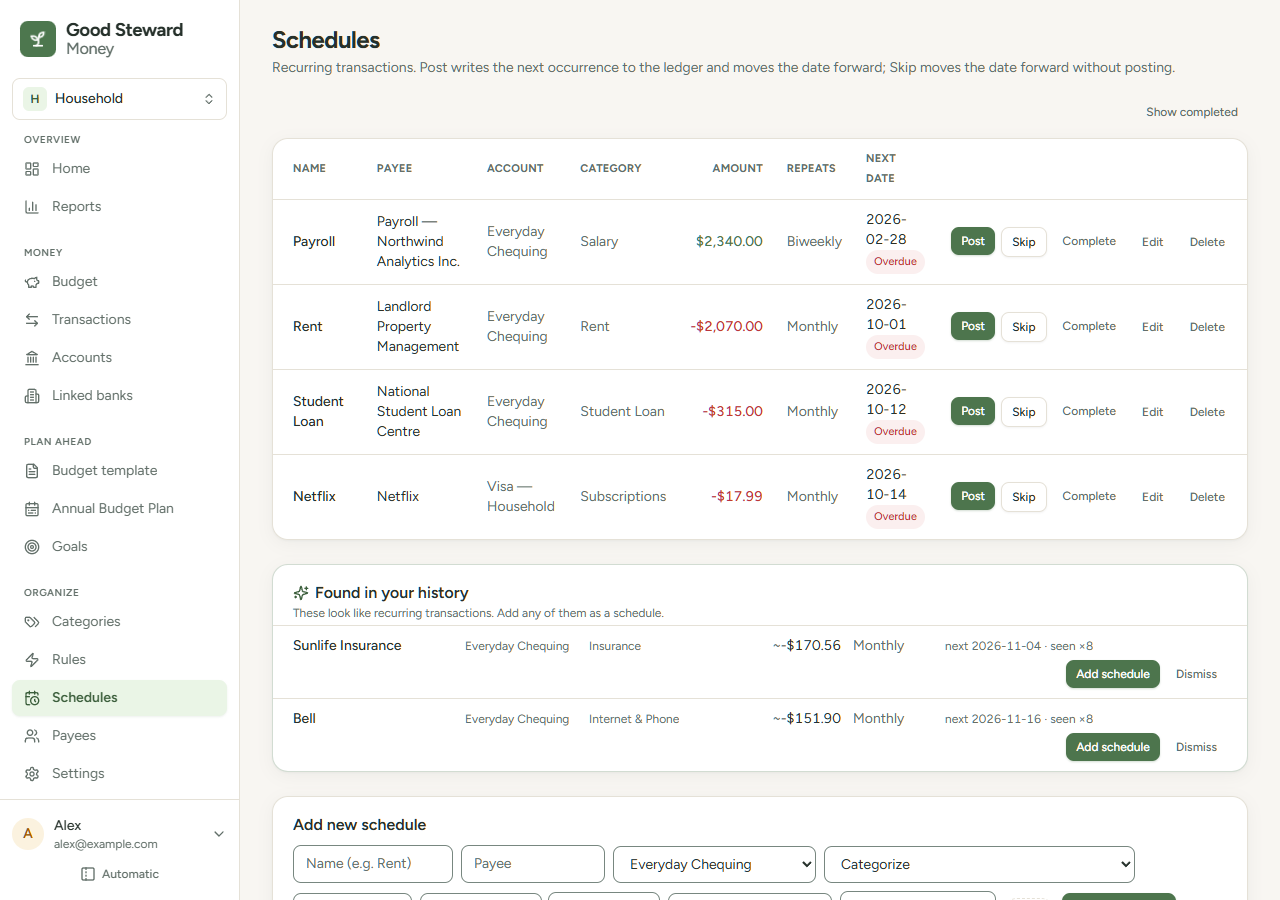
Read the Next date column
Select Schedules in the sidebar (on a phone, select the More tab, then Schedules). On a phone, scroll the table sideways to reach the buttons.
A badge beside each Next date compares it with today. "Last paid" under the date shows the latest transaction posted or linked to the schedule.
| Badge | Next date is |
|---|---|
| Overdue | Before today |
| Due | Today |
| Due soon | 1 to 3 days away |
| Upcoming | 4 to 7 days away |
| None | More than 7 days away |
Post an occurrence
- Select Post on the row.
The app adds a transaction to the schedule's account, dated the Next date, even if that date is in the future. It uses the schedule's amount, payee, category and tags. The transaction starts uncleared and shows under To review. Rules do not run on it. The Next date then moves to the next occurrence. A One-time schedule moves to the completed list.
If the schedule already moved on, a notice says so and nothing changes.
Skip an occurrence
- Select Skip on the row.
The Next date moves forward one step and no transaction is added. A notice confirms the skip. Select Undo in the notice to restore the date, as long as the date has not moved again. One-time schedules have no Skip.
Complete or restart a schedule
Complete stops a schedule without deleting it. The schedule leaves the list. It stops appearing on Home, in the Scheduled section on Transactions, in the Looking ahead report and in the due count. Posted transactions stay.
- Select Complete on the row. A notice confirms it and has an Undo button.
To bring a schedule back:
- Select Show completed above the table. Completed schedules appear below the active ones with a Completed badge.
- Select Restart on the row.
The Next date becomes the first occurrence on or after today, on the schedule's usual pattern. Example: a monthly schedule has a Next date of September 5, 2026. Restarted on October 11, 2026, it gets November 5, 2026.
Edit a schedule
- Select Edit on the row.
- Change any field in the Edit schedule dialog: Name, Payee, Account, Category, Type, Amount, Repeats, Next date or Tags.
- Select Save changes.
A schedule on a hidden category keeps posting to it. The list shows the category name with a small hidden label. In Edit schedule, the Category list shows it as "Name (hidden)" under "Current (hidden)", so saving without a change keeps the category.
Posted transactions do not change. Saved tags replace the schedule's tags. For month-based repeats, saving sets the day of the month from the Next date shown. If a schedule for the 31st shows February 28, change the Next date to a date on the 31st before you save.
Completed schedules have no Edit. Restart one first.
Delete a schedule
- Select Delete on the row.
- Select Delete schedule.
Posted transactions stay in the ledger.